Export and Import
The functionality is available in PRO Edition only
PROYou can export the visible board to PDF, PNG, and xlsx, and import card data from Excel spreadsheets. Exports go through the export-data action; imports use provide-data or direct prop replacement. Two optional companion widgets handle the UI side: ExportPopup collects export options, and ExcelImport parses spreadsheets into card records.
How export works
Every export flow runs through one action:
api.exec("export-data", { url, format, fileName, skin, paper, excel });
The action assembles the current visible board state - respecting filters, sort order, and skipping collapsed or empty columns - then dispatches it to a transport chosen by url:
- String URL - posts the payload to an external service (the SVAR export service for PDF and PNG). The generated file opens in a new browser tab.
- Function URL - calls your function with the payload, the visible card records, and helper utilities. This is the path for client-side xlsx generation or custom routing.
If url is omitted, the action assembles the payload but doesn't dispatch it.
The export-data action is available in the PRO version only.
Exporting to PDF and PNG
PDF and PNG exports use the SVAR export service. Build the service URL from the package version and pass it as a string:
import { useRef } from "react";
import { Kanban, version } from "@svar-ui/react-kanban";

function App() {
  const api = useRef(null);
  const url = "https://svar-export.webix.io/kanban/" + version;

  const toPDF = () => {
    api.current.exec("export-data", { url, format: "pdf", skin: "print" });
  };

  const toPNG = () => {
    api.current.exec("export-data", { url, format: "png" });
  };

  return (
    <>
      <button onClick={toPDF}>Export to PDF</button>
      <button onClick={toPNG}>Export to PNG</button>
      <Kanban ref={api} cards={cards} columns={columns} />
    </>
  );
}
Each call assembles the visible board, posts it via a hidden form, and the file opens in a new tab.
Controlling page layout
Pass a paper object to set page size, orientation, margins, headers, and footers:
api.exec("export-data", {
	url,
	format: "pdf",
	skin: "print",
	paper: {
		size: "a4",
		landscape: true,
		fitSize: true,
		margins: { top: 10, bottom: 10, left: 15, right: 15 },
		header: "Project Board",
		footer: "Page {page}",
	},
});
Appearance skins
The skin option selects the visual theme on the export service side. Common values: "willow" (default), "dark", "print", and "bw" (black and white). The local board doesn't re-skin during export - theming is applied server-side.
Exporting to xlsx
Spreadsheet export happens entirely in the browser. Use api.getCards() to grab all source cards, build the workbook with a library like xlsx-writer-lite, and trigger a download:
import { useRef } from "react";
import { Kanban, version } from "@svar-ui/react-kanban";
import { writeWorkbook, downloadBlob } from "xlsx-writer-lite";

function App() {
  const api = useRef(null);

  const columns = [
    { label: "Title", id: "label", width: 30 },
    { label: "Deadline", id: "deadline" },
    { label: "Description", id: "description", width: 50 },
  ];

  const toExcel = async () => {
    const blob = await writeWorkbook(api.current.getCards(), columns, { header: true });
    downloadBlob(blob, "cards.xlsx");
  };

  return (
    <>
      <button onClick={toExcel}>Export to Excel</button>
      <Kanban ref={api} cards={cards} columns={columns} />
    </>
  );
}
getCards() returns every source card regardless of filters or collapsed columns.
To export only what's visible on the board, route through export-data with a function transport instead:
const dynamicURL = async (cfg, records, helpers) => {
	if (cfg.format === "xlsx") {
		const blob = await writeWorkbook(records, cfg.excel.columns, {
			header: true,
		});
		downloadBlob(blob, "cards.xlsx");
	} else {
		helpers.post(serviceUrl, { data: helpers.serialize(cfg) });
	}
};

api.exec("export-data", {
	url: dynamicURL,
	format: "xlsx",
	excel: {
		columns: [
			{ id: "title", label: "Task", width: 50 },
			{ id: "description", label: "Description", width: 50 },
			{ id: "status", label: "Status" },
			{ id: "priority", label: "Priority" },
		],
	},
});
Here records contains the flattened cards from visible columns, so the resulting file matches the board view.
Export popup
ExportPopup from @svar-ui/react-export-popup is an optional companion that presents a tabbed dialog for PDF, PNG, and xlsx export. It collects user preferences and emits an ExportRequest - spread it into the export-data call along with your transport URL.
import { useState, useRef } from "react";
import { Kanban, Editor, version } from "@svar-ui/react-kanban";
import { ExportPopup } from "@svar-ui/react-export-popup";
import { writeWorkbook, downloadBlob } from "xlsx-writer-lite";

function App() {
  const [api, setApi] = useState(null);
  const anchor = useRef(null);
  const [showPopup, setShowPopup] = useState(false);

  const serviceUrl = "https://svar-export.webix.io/kanban/" + version;

  const dynamicURL = async (cfg, records, helpers) => {
    if (cfg.format === "xlsx") {
      const blob = await writeWorkbook(records, cfg.excel.columns, {
        header: true,
      });
      downloadBlob(blob, "cards.xlsx");
    } else {
      helpers.post(serviceUrl, { data: helpers.serialize(cfg) });
    }
  };

  const initial = {
    format: "pdf",
    paper: { landscape: true },
    excel: {
      columns: [
        { id: "title", label: "Task", width: 50 },
        { id: "description", label: "Description", width: 50 },
        { id: "status", label: "Status" },
        { id: "priority", label: "Priority" },
      ],
    },
  };

  const doExport = (request) => {
    api.exec("export-data", { url: dynamicURL, ...request });
    setShowPopup(false);
  };

  return (
    <>
      <button ref={anchor} onClick={() => setShowPopup(true)}>Export</button>
      <Kanban init={setApi} cards={cards} columns={columns} />
      {api && <Editor api={api} />}

      {showPopup && (
        <ExportPopup
          tabs={["pdf", "png", "xlsx"]}
          parent={anchor.current}
          initial={initial}
          onExport={doExport}
          onClose={() => setShowPopup(false)}
        />
      )}
    </>
  );
}
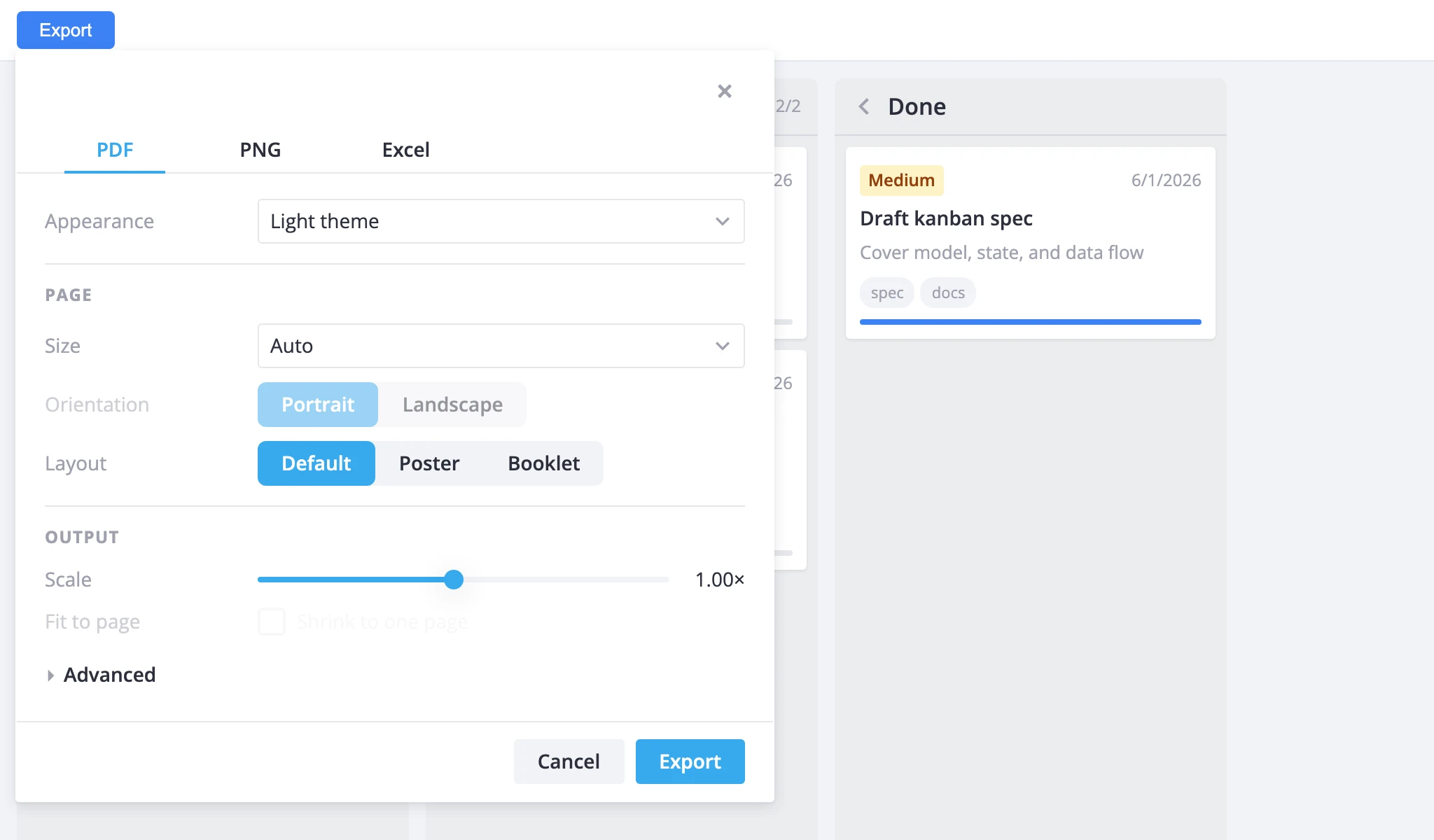
The popup doesn't close itself - unmount it in the onExport and onClose handlers. initial seeds the UI once at mount; later mutations are ignored.
When you combine PDF/PNG (server-side) with xlsx (client-side), a function transport routes each format to the right place: xlsx builds the file locally, while PDF and PNG post to the service via helpers.post.
Importing from Excel
ExcelImport from @svar-ui/react-excel-import opens a modal wizard for uploading .xlsx, .csv, or .tsv files. It parses the file, lets the user map spreadsheet columns to card fields, and returns transformed rows. Feed those rows into the board with provide-data.
import { useState } from "react";
import { Kanban, Editor } from "@svar-ui/react-kanban";
import { ExcelImport } from "@svar-ui/react-excel-import";

function App() {
  const [api, setApi] = useState(null);
  const [importVisible, setImportVisible] = useState(false);

  const handleImport = (cards) => {
    cards.forEach(card => (card.column = card.column || "todo"));
    api.exec("provide-data", { cards });
    setImportVisible(false);
  };

  return (
    <>
      <button onClick={() => setImportVisible(true)}>Import from Excel</button>
      <Kanban init={setApi} cards={cards} columns={columns} />
      {api && <Editor api={api} />}

      {importVisible && (
        <ExcelImport
          fields={[
            { label: "Title", id: "label" },
            { label: "Deadline", id: "deadline" },
            { label: "Description", id: "description" },
          ]}
          generateIds={true}
          onImport={handleImport}
          onClose={() => setImportVisible(false)}
        />
      )}
    </>
  );
}
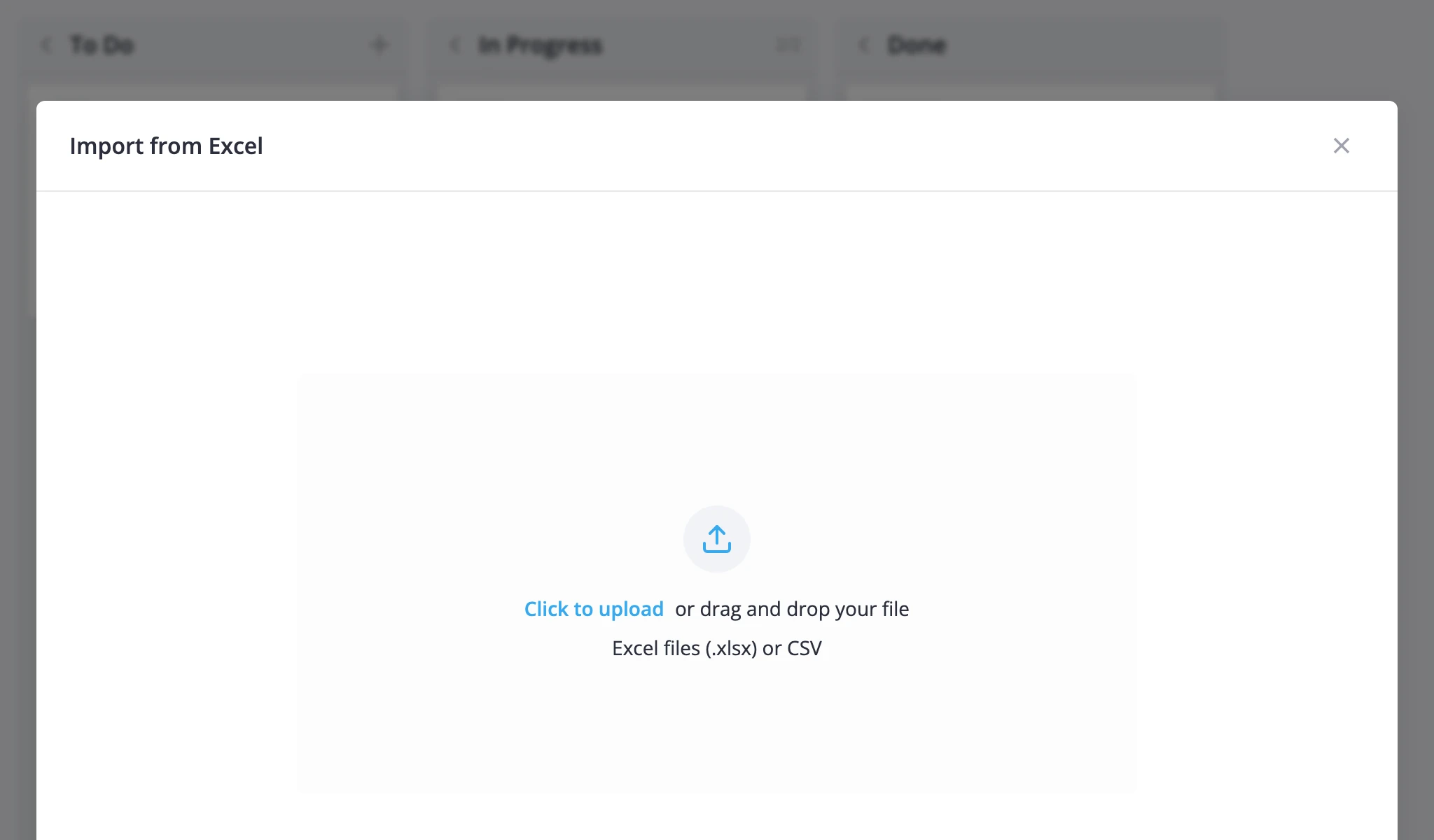
fields defines which card properties map to spreadsheet columns. The wizard auto-detects matching columns by header name. Set generateIds to true so imported rows without IDs get numeric ones - provide-data expects every card to have an ID.
provide-data upserts: existing cards with the same ID are updated, new ones are inserted. Cards already in the store that aren't in the import stay untouched. To fully replace board data instead of merging, pass a new cards prop to <Kanban>.
Assign a default column to each imported card (as shown with card.column || "todo" above) so they land in the right place. If you use a custom columnAccessor, map imported records so the accessor can read their column membership before calling provide-data.