Unscheduled tasks
The functionality is available in PRO Edition only
An unscheduled task is a task with no start date. It appears in the grid area with a hyphen (-) in the Start and Duration columns, but has no bar on the timeline.
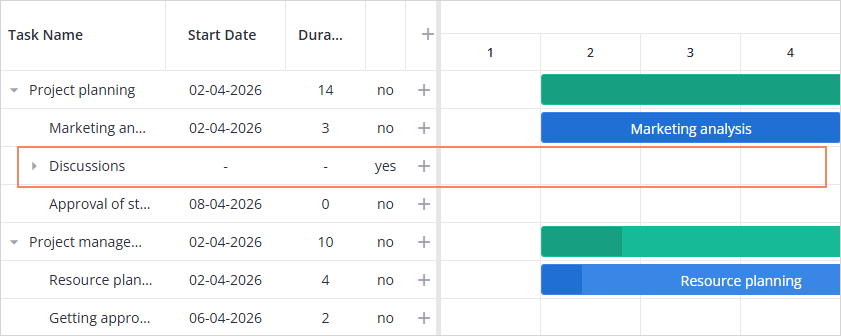
Enabling unscheduled tasks
By default, support for unscheduled tasks is disabled.
To enable the functionality, set the unscheduledTasks property to true:
<script setup>
    import { getData } from "./data";
    import { Gantt } from "@svar/vue-gantt";

    const data = getData();

</script>

<template>
  <Gantt :tasks="data.tasks" :unscheduledTasks="true" />
</template>
Loading unscheduled tasks
To load a task as unscheduled, omit the start field in its data object:
{
  id: 1,
  text: "Unscheduled task"
  // no start -> the task is unscheduled
}
Example
The following example demonstrates how to:
- load unscheduled tasks initially
- display unscheduled task in UI using
:unscheduledTasks="true" - allow editing through the built-in Editor component
<script setup>
  import { ref } from "vue";
  import { Gantt, Editor } from "@svar/vue-gantt";

  const api = ref();

  const tasks = [
    {
      id: 1,
      open: true,
      start: new Date(2026, 11, 6),
      duration: 8,
      text: "Gantt Widget",
      progress: 60,
      type: "summary"
    },
    {
      id: 2,
      parent: 1,
      start: new Date(2026, 11, 6),
      duration: 4,
      text: "Lib-Gantt",
      progress: 80
    },

    //unscheduled task
    {
      id: 3,
      parent: 1,
      text: "UI Layer",
      progress: 30
    }
  ];

  const links = [
    { id: 1, source: 1, target: 2, type: "e2e" }
  ];

  const scales = [
    { unit: "month", step: 1, format: "%F %Y" },
    { unit: "day", step: 1, format: "%j" },
  ];
</script>

<template>
  <Gantt
    ref="api"
    :tasks="tasks"
    :links="links"
    :scales="scales"
    :unscheduledTasks="true"
  />

  <Editor :api="api" />
</template>
Making a task scheduled/unscheduled
You can change a task's scheduled/unscheduled state at any time either via UI or through the API.
via UI
When unscheduledTasks is enabled, all new tasks created via the UI are unscheduled by default.
To schedule a task:
- In the grid area, pick a date in the built-in editor of the Start column.
- In the Editor, set the start date.
- On the chart area, click the empty row of an unscheduled task, or drag horizontally across it. The click sets the duration to one scale unit, the drag sets the range you cover.
Clicking and dragging on the chart works for the task and milestone types, but not for summary or grouping rows. If the task uses a calendar, it can't start on a non-working day.
To unschedule a task:
- In the grid area, open the built-in editor of the Start column and click Unschedule.
- In the Editor, clear the start date by clicking the Close icon or click Unschedule in its date picker.
via API
Both state changes go through the update-task action. To unschedule a task, set its start to null:
api.exec("update-task", { id: 1, task: { start: null } });
To schedule it, set start, and duration if the task needs one:
api.exec("update-task", { id: 3, task: { start: new Date(2026, 2, 1), duration: 3 } });
Related sample:
Related articles: