Secondary grid panel
The functionality is available in PRO Edition only
The secondary grid panel, or the Subgrid, is an extra grid that Gantt can show to the right of the chart, in addition to the grid on the left. Use it for the data that must stay visible when the user scrolls the timeline, for example status, cost, or other task fields.
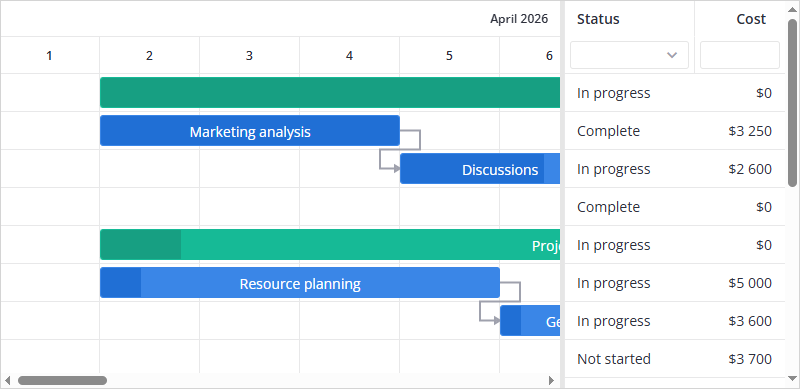
Adding columns to the Subgrid
The Subgrid is created by columns, not by a separate property. Set the section parameter of a columns object to "subGrid" and the column moves to the right grid. Columns with section: "grid" or without the parameter stay in the left grid.
<script setup>
import { getData } from "../data";
import { Gantt } from "@svar/vue-gantt";

const data = getData();

const columns = [
  { id: "text", header: "Task name", flexgrow: 1 },
  { id: "start", header: "Start date", width: 120, align: "center" },
  { id: "duration", header: "Duration", width: 100 },
  { id: "status", header: "Status", width: 130, section: "subGrid" },
  {
    id: "cost",
    header: "Cost",
    width: 90,
    align: "right",
    section: "subGrid",
  },
];
</script>

<template>
  <Gantt
    :tasks="data.tasks"
    :links="data.links"
    :scales="data.scales"
    :columns="columns"
  />
</template>
Both grids show the same rows in the same order. If you sort, filter, or expand tasks in the left grid, the Subgrid shows the same result.
If no column has section: "subGrid", the Subgrid is not rendered, whatever the value of the displayMode property is.
Subgrid columns support the same parameters as the columns of the main grid: templates, custom cells, inline editors, and header filters. The header menu opens for the grid where you right click. Thus you hide and show the columns of each grid separately.
Setting the Subgrid width
Use the subGridWidth property to set the initial width of the right grid in pixels:
<Gantt :tasks="tasks" :scales="scales" :columns="columns" :subGridWidth="220" />
If the property is omitted, Gantt calculates the width as the sum of the widths of the Subgrid columns.
Accessing the Subgrid API
The api.getTable() method returns the Table API of the left grid by default. Pass "subGrid" as the second parameter to get the API of the right grid:
const table = await api.getTable(true, "subGrid");
Focusing a cell in the Subgrid
The select-task action can move focus to the cell of the selected task in the Subgrid:
api.exec("select-task", { id: 3, focus: "subGrid" });
Related sample:
Related articles: