Undo and Redo
The functionality is available in PRO Edition only
The Kanban widget can track card changes so users can step backward and forward through their edits. This guide covers how history works, how to surface it through the toolbar, and how to wire custom keyboard shortcuts.
How history works
History is an opt-in snapshot system. When you enable it, every mutating card action (add-card, update-card, move-card, duplicate-card, delete-card) saves a shallow copy of the card array before the change applies. undo restores the most recent snapshot and pushes the current state onto the redo stack; redo reverses the process.
A few things to know:
- History tracks cards only. Column changes, filter state, and sort order aren't captured.
- Consecutive
update-cardcalls for the same card within a short time window are grouped into one history entry, so rapid edits in the editor don't flood the stack. - Tight bursts of the same action type (e.g. several quick deletes) are also grouped.
- Restoring a snapshot closes the editor (
editorDataresets tonull). - Reinitializing the store - for example, passing new
cardsorcolumnsprops - resets both stacks. The new data becomes authoritative. - History is local client state. It's designed for edit-then-save workflows, not as a backend-synchronized undo protocol.
You can check the current stack depths with api.getState().history, which returns { undo: number, redo: number }. For reactive updates, use api.getReactiveState().history.
Enabling history
Set the history prop on <Kanban> to true:
<script>
    import { Kanban } from "@svar-ui/svelte-kanban";

    const columns = [
        { id: "backlog", label: "Backlog" },
        { id: "doing", label: "In Progress" },
        { id: "done", label: "Done" },
    ];

    const cards = [
        { id: 1, label: "Task A", column: "backlog" },
        { id: 2, label: "Task B", column: "doing" },
    ];
</script>

<Kanban {cards} {columns} history={true} />
With history off (the default), undo and redo are no-ops and no snapshots are taken.
Triggering undo and redo
With history enabled, dispatch the undo or redo action through the API:
<script>
    import { Kanban } from "@svar-ui/svelte-kanban";

    let api;
    const columns = [
        { id: "backlog", label: "Backlog" },
        { id: "doing", label: "In Progress" },
        { id: "done", label: "Done" },
    ];
    const cards = [];
</script>

<button onclick={() => api.exec("undo", {})}>Undo</button>
<button onclick={() => api.exec("redo", {})}>Redo</button>

<Kanban bind:this={api} {cards} {columns} history={true} />
Both actions take an empty object as payload. When there's nothing to undo or redo, the call is a no-op.
Toolbar integration
The built-in Toolbar component includes ready-made undo and redo buttons. Enable them with the undo prop:
<script>
    import { Kanban, Toolbar, Editor } from "@svar-ui/svelte-kanban";

    let api = $state();
    const columns = [
        { id: "backlog", label: "Backlog" },
        { id: "doing", label: "In Progress" },
        { id: "done", label: "Done" },
    ];
    const cards = [
        { id: 1, label: "Task A", column: "backlog" },
        { id: 2, label: "Task B", column: "doing" },
    ];
</script>

<Toolbar {api} undo={true} />
<Kanban bind:this={api} {cards} {columns} history={true} />
{#if api}<Editor {api} />{/if}
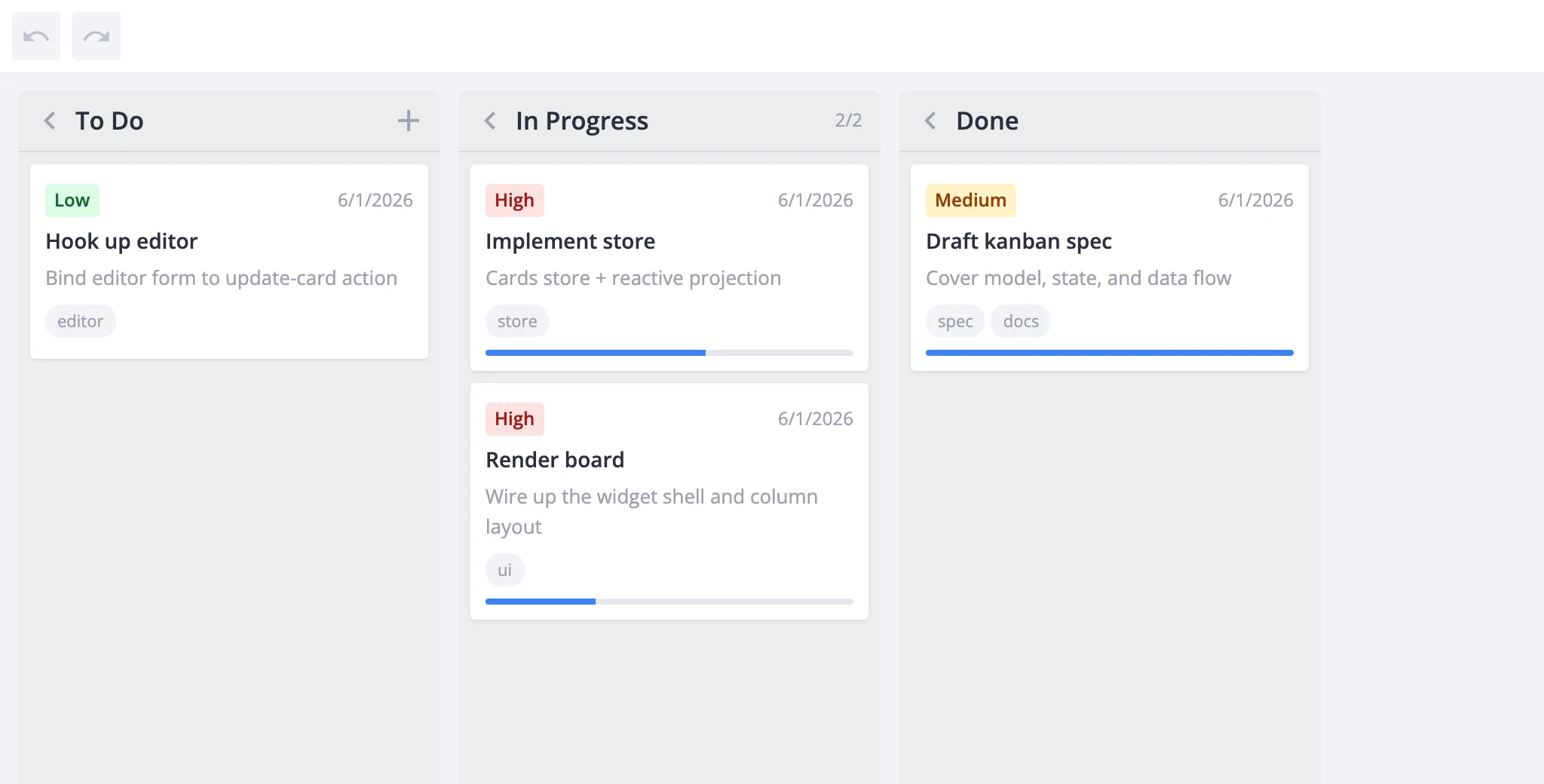
The toolbar subscribes to the reactive history state. It disables each button when its stack is empty. Without history={true} on <Kanban>, both buttons render but stay permanently disabled.
Combine undo with the other toolbar features:
<Toolbar {api} add={true} undo={true} sort={true} />
This renders the full default toolbar: add-card button, undo/redo buttons, and a sort menu.
Custom shortcuts
The widget doesn't bind keyboard shortcuts for undo and redo. Wire them yourself by listening for key events and dispatching the actions:
<script>
    import { Kanban, Editor } from "@svar-ui/svelte-kanban";

    let api = $state();
    const columns = [
        { id: "backlog", label: "Backlog" },
        { id: "doing", label: "In Progress" },
        { id: "done", label: "Done" },
    ];
    const cards = [];

    function handleKeydown(e) {
        if (!api) return;
        const mod = e.ctrlKey || e.metaKey;
        if (mod && e.key === "z" && !e.shiftKey) {
            e.preventDefault();
            api.exec("undo", {});
        } else if (mod && e.key === "z" && e.shiftKey) {
            e.preventDefault();
            api.exec("redo", {});
        }
    }
</script>

<svelte:window onkeydown={handleKeydown} />

<Kanban bind:this={api} {cards} {columns} history={true} />
{#if api}<Editor {api} />{/if}
This binds Ctrl+Z for undo and Ctrl+Shift+Z for redo at the window level. The metaKey check covers Cmd+Z on macOS. Adjust the bindings or scope the listener to a wrapper element to fit your app.