Styling
This guide covers how to recolor calendar cells, restyle event wrappers, and replace the markup inside events without touching the underlying view layout.
How styling hooks fit together
The calendar gives you three customization points. Each one solves a different problem:
cellCssadds CSS classes to background grid cells (day boxes, hour slots, resource columns).eventCssadds CSS classes to the outer event element.eventContentswaps the markup rendered inside the event wrapper.
Keep them separate. cellCss paints the canvas. eventCss paints the event's frame. eventContent rewrites what's inside the frame. The render layer still owns positioning, overlap handling, drag, and resize - these hooks only change classes or inner content.
Two rules to keep in mind:
eventCssdoesn't replaceevent.css. The renderer concatenates both, so a static class on the event data and a dynamic class returned by the callback both end up on the wrapper.eventContentonly changes the inside of the wrapper. The outer element is still owned by the calendar (.wx-box-event,.wx-bar-event, agenda row, year tooltip row).
Painting cells with cellCss
cellCss is a callback that runs for every rendered grid or month cell. It receives a CellContext and returns a class name string.
cellCss?: (ctx: CellContext) => string;

interface CellContext {
  view: string;
  section: string;
  mode: "grid" | "bars" | "boxes" | "list" | "year";
  x: ScaleUnit | null;   // x-axis unit (null when no x-scale)
  y: ScaleUnit | null;   // y-axis unit (null when no y-scale)
  date: Date | null;     // resolved date when at least one axis is a date
}
What's in ctx depends on the view:
- In month view, the class lands on the actual day cell.
xandyarenull; onlydateis set. - In day, week, timeline, and resources views, the class lands on background cells generated from scale headers.
xandycarry the active scale units. For non-date axes (resources, units),x.id/y.idis the resource id. datecomes from the date-bearing axis. If both axes are dates, the renderer combines the date part of one with the time part of the other. If only one axis is a date,datematches that axis. If neither axis is a date,dateisnull.
cellCss runs only for background grids in bars / boxes / grid sections and for the month grid. It doesn't apply to list (agenda) or year sections.
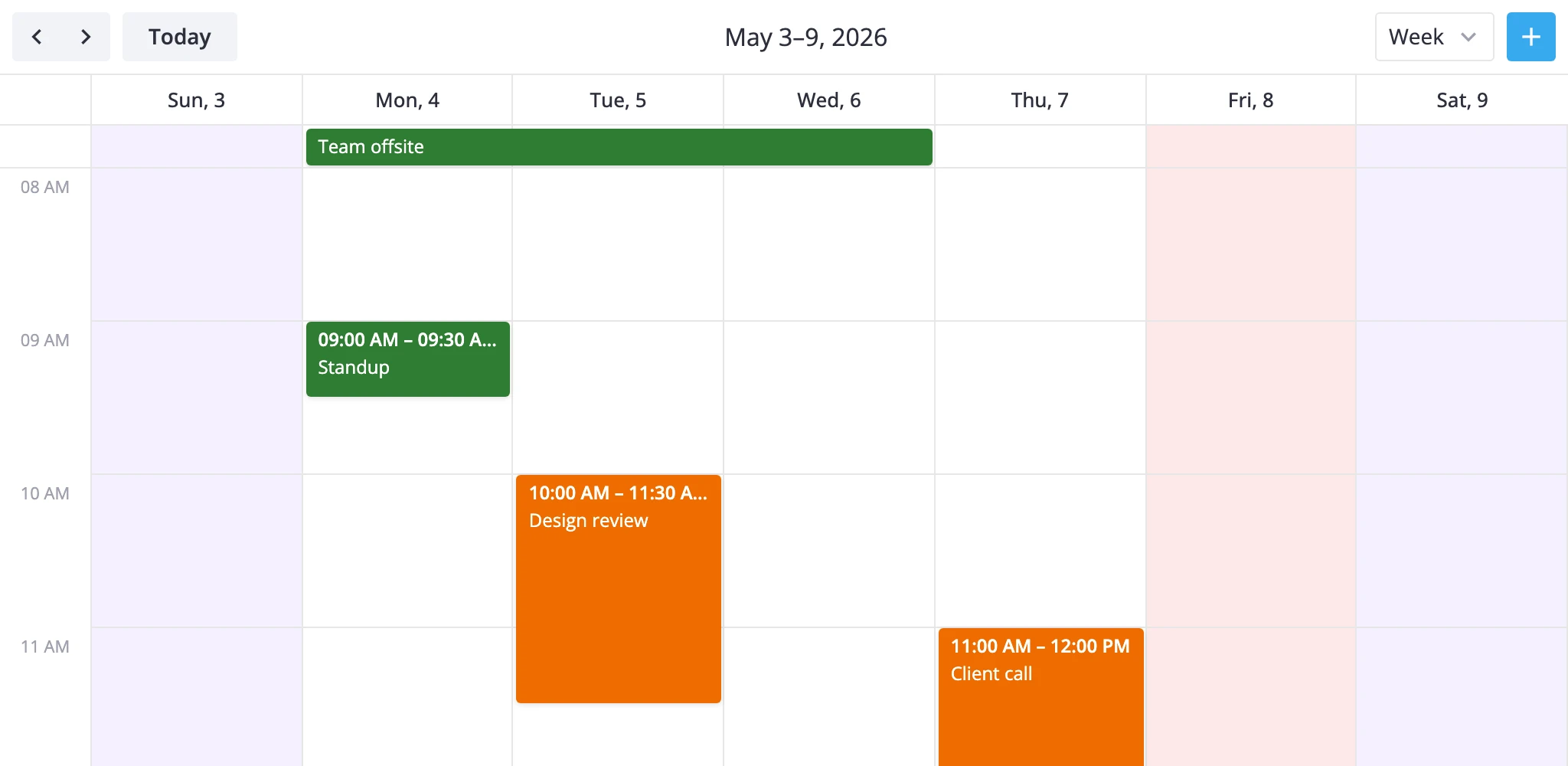
Marking weekends, holidays, and lunch hours
Branch on date and section to apply different classes per condition:
<script lang="ts">
  import { Calendar } from "@svar-ui/svelte-calendar";
  import type { CellContext } from "@svar-ui/svelte-calendar";

  function cellCss(ctx: CellContext): string {
    const { date, section } = ctx;
    if (!date) return "";

    const day = date.getDay();
    if (day === 0 || day === 6) return "weekend";

    if (
      section === "timeGrid" &&
      date.getHours() >= 12 &&
      date.getHours() < 13
    ) {
      return "lunch";
    }

    if (day === 5) return "holiday";
    return "";
  }
</script>

<Calendar {events} {date} {cellCss} />

<style>
  :global(.weekend) { background-color: #f5f0ff !important; }
  :global(.holiday) { background-color: #fde8e8 !important; }
  :global(.lunch)   { background-color: #fef9e7 !important; }
</style>
Two things to notice:
- The
lunchbranch checkssection === "timeGrid"so the class fires only on the hour grid, not on the multiday strip. :global(...)is needed because Svelte scopes class selectors by default, butcellCssreturns an unscoped class name.
Per-resource styling in timeline and resources views
Read the discrete axis directly:
function cellCss(ctx: CellContext): string {
	// timeline: resource is on Y; resources view: resource is on X
	const resourceId = ctx.y?.id ?? ctx.x?.id;
	return resourceId ? `row-${resourceId}` : "";
}
This gives you per-row or per-column tinting in resource-based views without parsing dates.
Restyling event wrappers with eventCss
eventCss runs for every rendered event and returns classes added to the outer element.
eventCss?: (ctx: EventContext) => string;

interface EventContext {
  event: CalendarEvent;
  view: string;     // "day" | "week" | "month" | "timeline" | ...
  section: string;  // section name from the view model
  mode: "grid" | "bars" | "boxes";
}
The mode field tells you how the event is being rendered:
boxesfor timed blocks in day, week, and resources views.barsfor horizontal bar layouts (multiday section, timeline).gridfor month-view event bars inside day cells.
Use view to tell apart renders that share a mode - day and week both render bars and boxes. Use section when you need to vary by source section, which matters most in resources view, where each resource is its own section.
Coloring events by priority
Combine an event field with the render mode:
<script lang="ts">
  import { Calendar } from "@svar-ui/svelte-calendar";
  import type { EventContext } from "@svar-ui/svelte-calendar";

  function eventCss(ctx: EventContext): string {
    const { event, mode } = ctx;
    const cls = `priority-${event.priority || "default"}`;

    if (mode === "grid")  return cls + " grid-event";
    if (mode === "bars")  return cls + " bar-event";
    if (mode === "boxes") return cls + " box-event";
    return cls;
  }
</script>

<Calendar {events} {date} {eventCss} />

<style>
  :global(.priority-high)   { background-color: #c62828 !important; }
  :global(.priority-medium) { background-color: #ef6c00 !important; }
  :global(.priority-low)    { background-color: #2e7d32 !important; }
</style>
This is the right hook for:
- background and border colors;
- per-view variants of the same event;
- wrapper states like selected, urgent, blocked, or tentative.
Combining with event.css
If you'd rather carry a static class on the event data, set event.css. The renderer concatenates it with the value returned by eventCss:
const events = [{ id: 1, text: "Holiday", start, end, css: "vacation" }];
The wrapper ends up with vacation plus whatever eventCss returns at render time.
Replacing event markup with eventContent
When classes aren't enough, swap the body of the event for your own component.
eventContent?: Component;
Pass a Svelte component:
<script lang="ts">
  import { Calendar } from "@svar-ui/svelte-calendar";
  import EventContent from "./EventContent.svelte";
</script>

<Calendar
  {events}
  views={["day", "week", "month"]}
  view="week"
  {date}
  eventContent={EventContent}
/>
The component receives:
{
	event: CalendarEvent;
	mode: "grid" | "bars" | "boxes" | "list" | "year-tooltip";
}
Branch on mode so the same component works across views:
<script lang="ts">
  const { event, mode } = $props<{ event: any; mode: string }>();

  function fmt(d: Date) {
    return d.toLocaleTimeString([], { hour: "2-digit", minute: "2-digit" });
  }
</script>

{#if mode === "boxes"}
  <div class="custom-box">
    <div class="custom-box-header">{event.text}</div>
    <div class="custom-time">{fmt(event.start)} - {fmt(event.end)}</div>
    {#if event.priority}
      <div class="custom-badge custom-badge-{event.priority}">
        {event.priority}
      </div>
    {/if}
  </div>
{:else}
  <span class="custom-bar">{event.text}</span>
{/if}
A few things worth knowing:
- The outer element is still the calendar's wrapper. Apply layout and color there with
eventCss, and useeventContentfor the inner structure (icons, badges, multi-line text). mode === "list"is the agenda row.mode === "year-tooltip"is the small popup shown when hovering a day in year view. Handle them when those views are part ofviews.- If the same component should produce different markup in month bars vs. timeline bars, branch on
mode === "grid"(month) separately frommode === "bars".
Pairing with tooltip and eventPopup
Two related hooks customize the secondary surfaces:
tooltip- Svelte component shown on hover. Receives{ event }, or{ events }for year-day hover.eventPopup- Svelte component shown on click. Receives{ event, close }and replaces the default editor opening.
<Calendar
  {events}
  {date}
  eventContent={EventContent}
  tooltip={EventTooltip}
  eventPopup={EventPopup}
/>
eventContent controls the always-visible body. tooltip is the hover preview. eventPopup is the click detail card.
Picking the right hook
Quick decision table:
- Cell state depends on date, time, view, or section →
cellCss. - Event wrapper should change color, border, density, or per-view classes →
eventCss. - Event needs different inner structure (badges, icons, multi-line text) →
eventContent. - Hover preview →
tooltip. Click detail card →eventPopup.
For prop signatures and full type definitions, see the API reference for cellCss, eventCss, eventContent, tooltip, and eventPopup.