Constraints
The functionality is available in PRO Edition only
A constraint is a scheduling rule that ties a task to a specific start or finish date. It can require the task to start no earlier than a date, to finish on an exact date, or to meet one of the other conditions.
One constraint can be defined per task. Constraints are supported only for leaf tasks (those with no children) and milestones, not for summary tasks or split task segments.
Enabling constraints
To use constraints, enable either auto scheduling through the schedule property, or critical path calculation through the criticalPath property:
import { Gantt } from "@svar/react-gantt";
import { getData } from "./data";

const { tasks, links, scales } = getData();

export default function App() {
  return (
    <Gantt
      tasks={tasks}
      links={links}
      scales={scales}
      schedule={{ auto: true }} // or criticalPath={{ type: "flexible" }}
    />
  );
}
Once either property is set, the Editor adds the Constraint field to the Scheduling tab, with no extra configuration needed. The field renders as a pair of controls, a type selector and a date picker, where users pick the constraint type and its date:
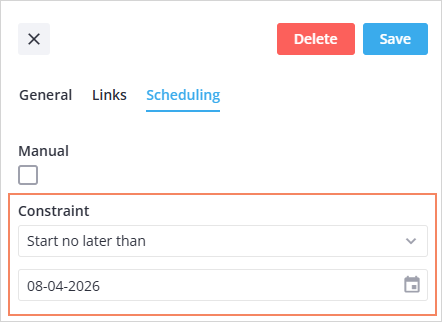
Setting a constraint on a task
To set a constraint on a task, add the constraint field to its task object:
{
  id: 20,
  text: "Resource planning",
  start: new Date(2026, 3, 3),
  duration: 4,
  constraint: { type: "snet", date: new Date(2026, 3, 6) },
}
Gantt supports the following constraint types:
"snet"- start no earlier than the date"snlt"- start no later than the date"fnet"- finish no earlier than the date"fnlt"- finish no later than the date"mso"- must start on the date"mfo"- must finish on the date
For the finish-side types (fnet, fnlt, mfo), the date works like the task end, which is exclusive. For example, to make a task finish by the end of April 6, set the date to April 7.
If you use calendars, set constraint dates on working days.
To remove a constraint, set the field to null:
function init(api) {
  api.exec("update-task", { id: 2, task: { constraint: null } });
}
Tracking scheduling conflicts
Conflicts are reported only when auto scheduling is enabled. Critical path analysis alone doesn't produce them.
A conflict is a contradiction that Gantt finds during a scheduling calculation. It can be of two types:
- a constraint conflict appears when a task ends up outside its constraint, for example when a manually scheduled task isn't moved to meet its constraint
- a link conflict appears when the dates of the successor task don't satisfy the requirement of the link. For example, an "end-to-start" link from task B to task A requires task A to start after task B finishes, while the
snlt(start no later than) constraint of task A requires an earlier date. Task A is placed on the constraint date, and the link is reported as a link conflict.
Conflicts are collected in the conflicts state property. Each auto scheduling run replaces the array entirely, so it always describes the current state of the chart, and an empty array means that nothing is violated.
To track scheduling conflicts, listen to the set-conflicts action:
import { Gantt } from "@svar/react-gantt";
import { getData } from "./data";

const { tasks, links, scales } = getData();

export default function App() {
  function init(api) {
    // edit a task's dates, link or constraint in the grid to trigger a reschedule
    // and see conflicts logged here
    api.on("set-conflicts", ({ conflicts }) => {
      console.log(`${conflicts.length} conflicts after the last run`);
      conflicts.forEach(conflict => {
        if (conflict.type === "constraint") {
          console.log(`Task ${conflict.task} misses its constraint, it has to start on ${conflict.required}`);
        } else {
          console.log(`Link ${conflict.link} into task ${conflict.task} is violated`);
        }
      });
    });
  }

  return (
    <Gantt
      tasks={tasks}
      links={links}
      scales={scales}
      schedule={{ auto: true }}
      init={init}
    />
  );
}
Showing conflicts in the UI
Gantt shows constraints on the chart once constraints are enabled. In the auto scheduling mode, it also highlights conflicts and provides a list that helps users review and resolve them.
Constraint markers
Each task with a constraint gets a marker on the chart: a line on the constraint date with a badge that shows the constraint type, for example SNET. For all types except mso and mfo, an arrow next to the line points to the side where the task is allowed to be.
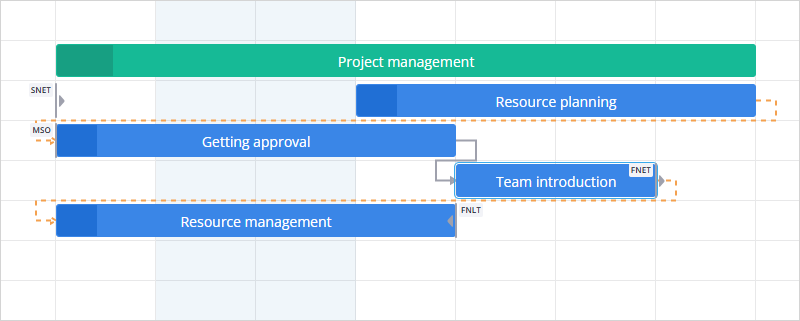
In the auto scheduling mode, the marker of a violated constraint is highlighted, and so is the line of a violated link.
If you add the Tooltip, hovering a marker shows the constraint type and date. To show it in a custom tooltip, handle data.constraint, see Tooltip.
Conflicts list
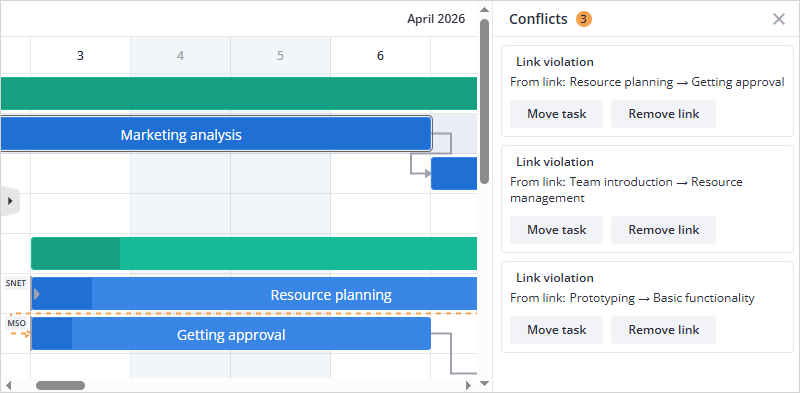
To show the list of conflicts, add the ConflictReport component next to the Gantt. The list is hidden until it's opened with the Conflicts button of the Toolbar or the show-conflicts action:
import { useState } from "react";
import { Gantt, Toolbar, ConflictReport } from "@svar/react-gantt";
import { getData } from "./data";
import "./App.css";

const { tasks, links, scales } = getData();

export default function App() {
  const [api, setApi] = useState(null);

  return (
    <>
      <Toolbar api={api} />
      <div className="row">
        <div className="gantt">
          <Gantt
            ref={setApi}
            tasks={tasks}
            links={links}
            scales={scales}
            schedule={{ auto: true }}
          />
        </div>
        <ConflictReport api={api} />
      </div>
    </>
  );
}
/* App.css */
.row {
  display: flex;
  height: 100%;
}
.gantt {
  flex: 1;
  min-width: 0;
}
The Conflicts button is added to the Toolbar automatically in the auto scheduling mode. A dot on the button signals that there are conflicts, and the button stays pressed while the list is open.
Each item of the list describes one conflict. Clicking an item selects its task and scrolls the chart to it, and the buttons of an item resolve the conflict:
- Move task moves the task to the start date that clears the conflict
- Remove link deletes the violated link
- Remove constraint removes the constraint from the task
To open the list from code, for example after a user action that is likely to cause conflicts, run the action:
api.exec("show-conflicts", { mode: true });
How constraints behave
Constraints follow a few rules that decide what happens when a user edits tasks:
- Constraints are never blocking. A task always moves where scheduling puts it; an unsatisfied constraint is reported, not prevented.
- A constraint follows its own side of the task on a direct edit (drag, resize, a date typed in the editor): a start-side constraint takes the new start, a finish-side one the new end. A direct edit never puts a task in violation of its own constraint.
- In the auto scheduling mode, adding or changing a constraint moves the task only if the constraint requires it, and removing a constraint reschedules the task by its links.
- On a direct edit, the task keeps the new dates even when they break its links.
- Constraints take priority over links: a link that conflicts with a constraint is reported as a link conflict.
Related sample:
Related articles:
- tasks property
- schedule property
- criticalPath property
- set-conflicts action
- show-conflicts action
- ConflictReport
- api.getState() method
- Auto scheduling
- Critical path