Gantt user interface overview
Main UI elements
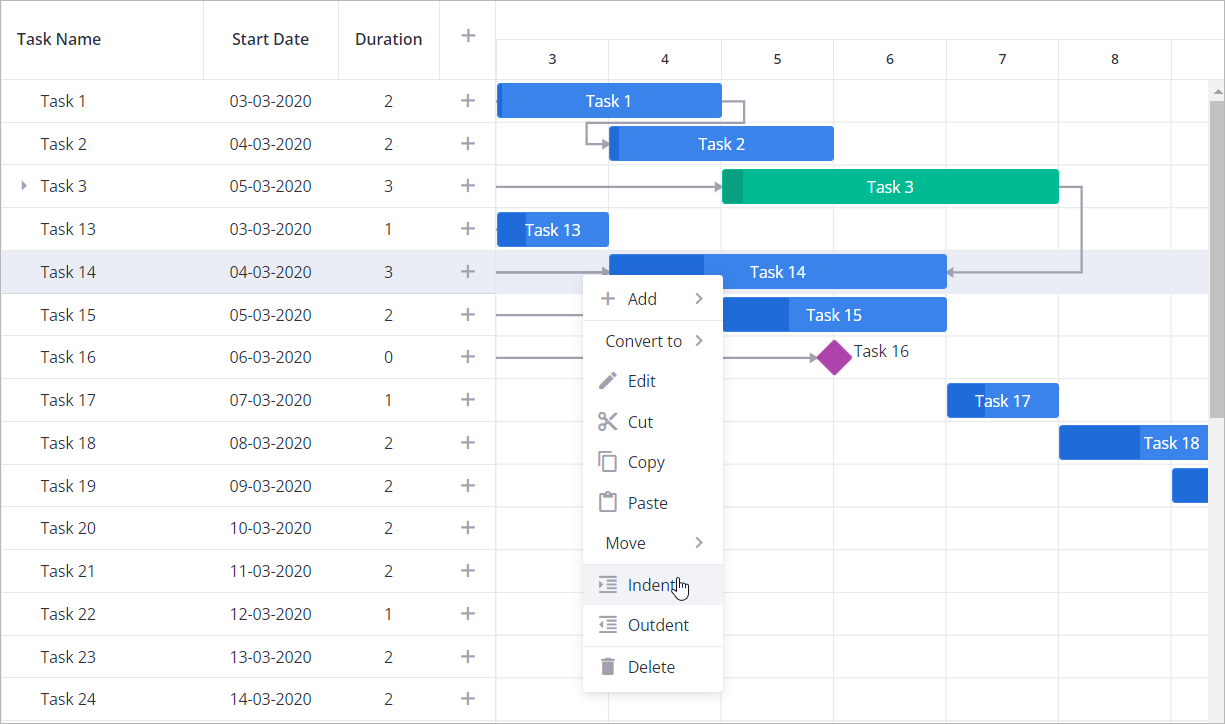
The Gantt chart illustrates a timeline of a project with its tasks.
Its main view consists of the following elements:
-
the Tasks tree or Grid area is used for quick navigation and shows each task start date, duration, and has the button control to add a task.
-
the Gantt chart where:
- the timescale shows tasks and other activities by days
- task bars represent such task types as projects, tasks, and milestones. Different colors are applied to differentiate between the types.
- milestones illustrate tasks with zero duration that are used to mark important dates of the project
- links show dependencies between tasks
-
the context menu that opens on the right-click

To open the context menu for a task, right click the required task in the Tasks tree or Gantt chart panel. The menu will open as in the image below:

Task types
There are three types of tasks in Gantt chart by default:
The color of the bar indicates the task type.

And you can also add a custom type.
Task
A task is a common task. It has a rectangular shape and a blue color and it is usually included into a summary task.
Milestone
A milestone is a diamond-shaped marker that defines an important point in the workflow. Milestones do not have duration or progress, so you can only specify the start date for them.
Summary task
A summary task is a group of tasks, milestones and other summary tasks (or other custom items created by a user). It is marked green.
Custom type
A user can create a custom task type. Please, refer to taskTypes
Managing tasks
Gantt chart allows adding tasks, editing and deleting summary tasks, tasks, and milestones as well as converting one task type into another.
Add a task
To add a task:
- Click the Add button in the Tasks tree area
OR
In the context menu hover Add and select Child task, Task above or Task below.
- In the right sidebar modal that appears, fill in the fields about a task.
- Click Save.

Convert one task type into another
To convert one task type into another, use the context menu (Option 1) or the Edit modal (Option 2).
Option 1:
- Right click the desired task in the Tasks tree or Gantt chart panel.
- In the context menu hover Convert, and in the submenu, select the type to convert to.

Option 2:
- Double-click the desired task in the Tasks tree or Gantt chart panel.
- In the sidebar modal that opens, in the Type drop-down list, select the type:

Edit a task
To edit a task/summary task/milestone:
- Double-click the desired task in the Tasks tree or Gantt chart panel.
OR
In the context menu for the desired task, click Edit. - In the right sidebar modal that appears, edit the fields about the task.
- Click Save.

Delete a task
To delete a task/summary task/milestone:
To delete a task, follow one of the procedures below:
Option 1: In the context menu for the desired task, click Delete.
Option 2:
- Double-click the desired task in the Tasks tree or Gantt chart panel.
- In the right sidebar modal that appears, click Delete.

Drag-n-drop progress bars (change task dates)
To change the start date of a task, move it by the cental part along the horizontal scale.

To change the start or end date of a task, move its rightmost and leftmost part (the area is marked with the resizer cursor).

The summary task's bar cannot be resized. Its start and end dates cannot be changed separately. And you can drag a summary task only with its child tasks, namely, if you shift a summary task, all its child tasks will be also moved. If a child task is rescheduled to start before the start date of a summary task, the summary task's start date changes. If a child task is rescheduled to end after a summary task's end date, the summary task's end date changes.
You can also change the task dates in the Edit modal: see Edit a task above.
Change task progress
The progress control in bars is shown for tasks and summary tasks (not for milestones).
You can change the progress by dragging the progress handler in a bar or follow the instructions below:
- Open the Edit task modal by double-clicking a task or selecting Edit in the context menu. See Edit a task above.
- In the modal, in the Progress field, move the cursor.

Copy&paste tasks
To copy and paste a task:
- Select a task by clicking it and then in the context menu, click Copy.
- Click the task after which you want to paste the copied task, and then in the context menu click Paste.

Move and reorder tasks
To move a task up and place it before the previous task, select a task and in the context menu, click Move -> Up
To move a task up and place it after the next task, select a task and in the context menu, click Move -> Down

To reorder tasks, in the Tasks tree, select a task, and drag-and-drop it to the required place in the tree.
Indent and outdent tasks
To demote a task to the lower nesting level, select it, and then in the context menu click Indent.
To increase the task nesting level, select a task, and then in the context menu click Outdent.
Sort tasks
Gantt allows users to sort tasks by clicking on a column header of the grid. When a single column header is clicked, tasks are sorted based on that column's values.
For multi-sorting, users can hold the Ctrl/Meta key while clicking additional column headers. This preserves the existing sorting order and applies a secondary (or further) sorting level. The sorting priority is determined by the order in which the columns were selected, meaning the first clicked column has the highest priority.
How to use multi-sorting:
- Single sorting: click a column header to sort the data by that column
- Multi-sorting: hold Ctrl/Meta and click another column header to add sorting without resetting the previous sorting
- Sorting priority: sorting is applied in the order the columns were clicked, with earlier selections taking precedence
- Removing sorting: click the column header again to toggle the sort direction or reset multi-sorting.
Adding dependency links
There are 4 types of links between activities:
- End to Start
- Start to Start
- End to End
- Start to End
To create links, click the round marker at the edge of the source task bar and then click the marker of the target task bar.

To edit the existing links, open the Edit modal for the desired task (see Edit a task), and in the Predecessors and/or Successors fields, change the link type. To delete a link, in the Edit modal, click the remove button next to the link type.

Resizing grid and chart
You can expand/collapse the grid (tasks tree) and chart areas manually using the resizing button:

Hotkeys
Gantt supports the following keyboard shortcuts to navigate and interact with data faster:
-
Navigation
- Arrow Up / Arrow Down - move selection vertically between rows (keys "arrowup"/"arrowdown")
- Arrow Left / Arrow Right - move focus horizontally between grid cells within the same row
-
Copy, Cut, and Paste
- Ctrl/Meta + C – copy the selected tasks (action key: "ctrl+c")
- Ctrl/Meta + X – cut the selected tasks (action key: "ctrl+x")
- Ctrl/Meta + V – paste next to the selected task (action key: "ctrl+v")
-
Delete
- Ctrl/Meta + D / Backspace – delete the selected tasks (action keys: "ctrl+d"/"backspace")
-
Execute grid cell action
- Enter – trigger the action associated with the current cell. For example, "open-task" action for "Task name" cells and "add-task" for the "+" cells.